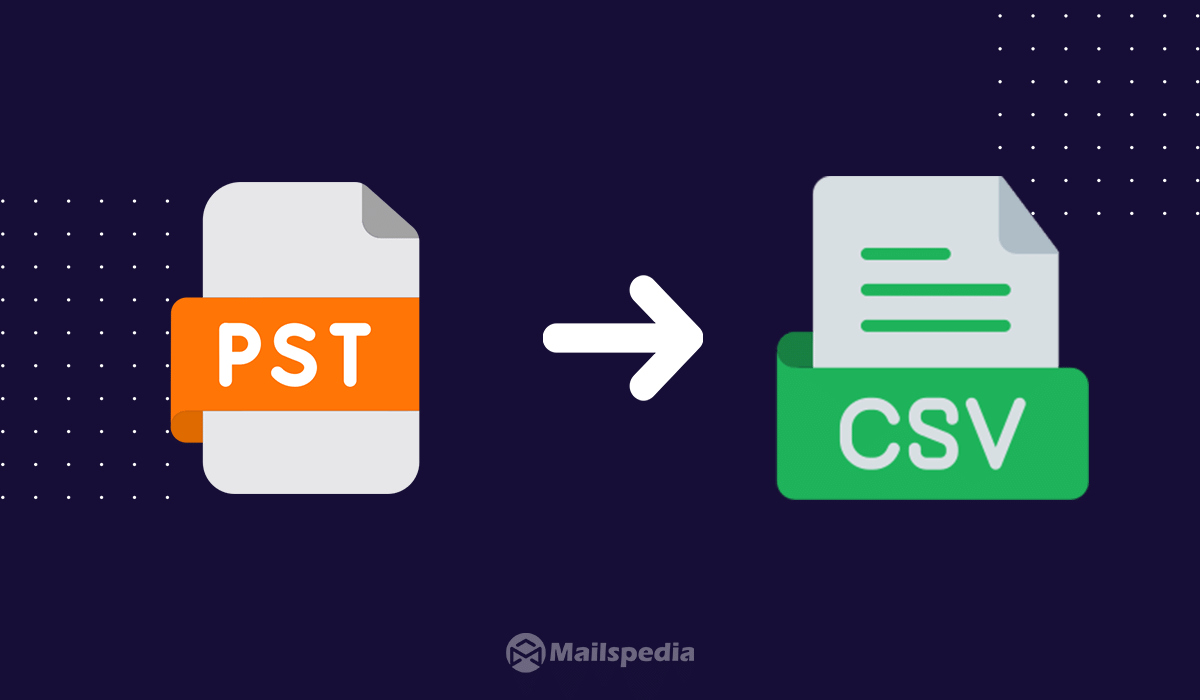
When users need to analyze, sort, or manage email data in spreadsheet format, converting MBOX to CSV becomes essential. CSV files are widely used for reporting, auditing, data analysis, and email management tasks.
In this guide, you’ll learn what MBOX and CSV files are, why CSV format is required, and how to convert MBOX to CSV using both a manual method and a professional MBOX to CSV Converter.
What is MBOX and CSV File?
MBOX is a common email storage format that stores multiple emails in a single text-based file. It is supported by email clients such as Thunderbird, Apple Mail, Eudora, and many UNIX-based systems.
CSV (Comma-Separated Values) is a spreadsheet-compatible file format used by applications like Microsoft Excel, Google Sheets, and database tools. CSV files store structured data such as sender, recipient, subject, date, and message body in tabular form.
Why You Need to Convert MBOX to CSV
There are several practical reasons to convert MBOX to CSV:
- To analyze email data in Excel or Google Sheets
- To create email audit or compliance reports
- To extract email headers and metadata
- To manage large email datasets efficiently
- To perform sorting, filtering, and searching
Since MBOX files cannot be opened directly in spreadsheet applications, users generally choose between:
- A manual workaround, or
- A professional MBOX to CSV Converter
The right method depends on data volume, accuracy requirements, and time availability.
Manual Method to Convert MBOX to CSV
The manual method uses Mozilla Thunderbird along with basic export and formatting steps. This approach is free but suitable only for very small MBOX files.
Step-by-Step Manual Method
Step 1: Install Mozilla Thunderbird on your system
Step 2: Import your MBOX file into Thunderbird
Step 3: Open individual emails and copy required fields
(Sender, Receiver, Subject, Date, Body)
Step 4: Paste the data manually into Microsoft Excel
Step 5: Arrange the data into columns
Step 6: Save the file as CSV format
Repeat these steps for each email.
Limitations of the Manual Method
- Extremely time-consuming
- No bulk conversion support
- High chance of human error
- Email formatting and attachments are lost
- Not suitable for large or business-critical data
Professional Method: Using MBOX to CSV Converter
For a fast, accurate, and structured solution, using a professional MBOX Converter is the best option. This method ensures reliable extraction of email data into spreadsheet-ready format.
Steps to Convert MBOX to CSV Using MBOX to CSV Converter
Step 1: Download and install MBOX to CSV Converter

Step 2: Launch the software and add MBOX files or folders
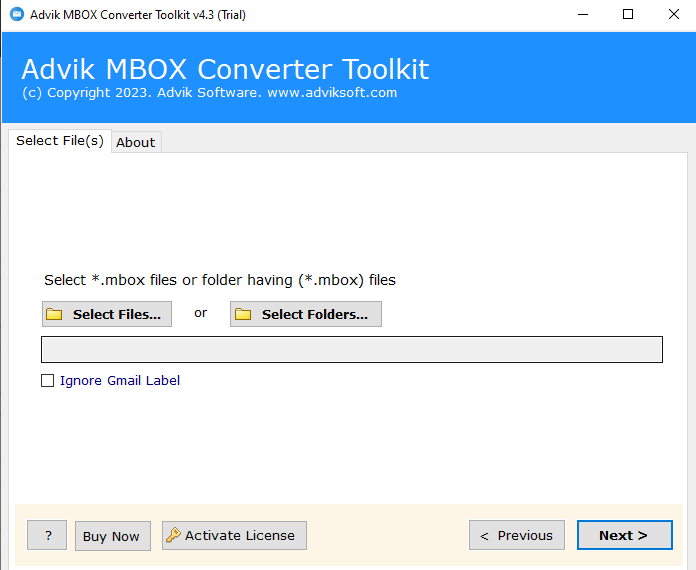
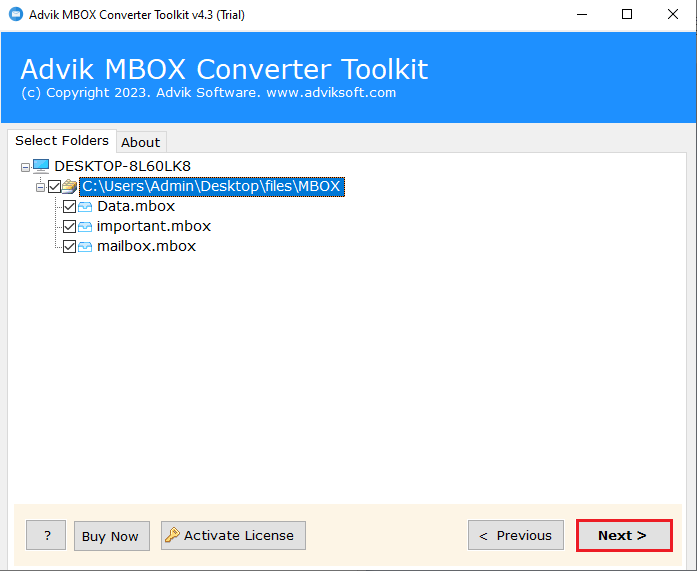
Step 3: Select Desired MBOX file that you want to convert
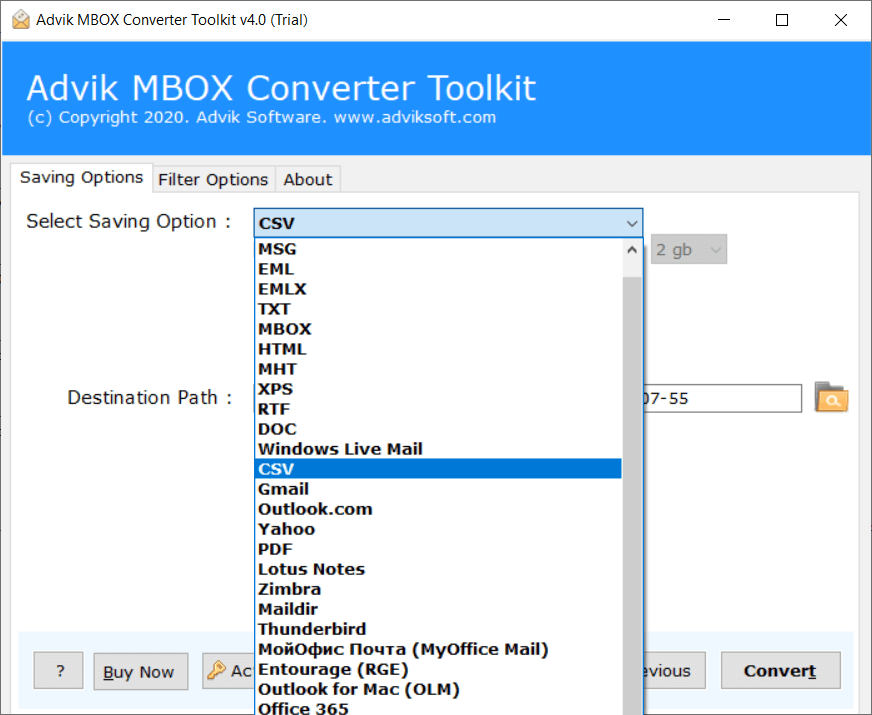
Step 4: Select CSV as the output format
Step 5: Click Convert to start the process
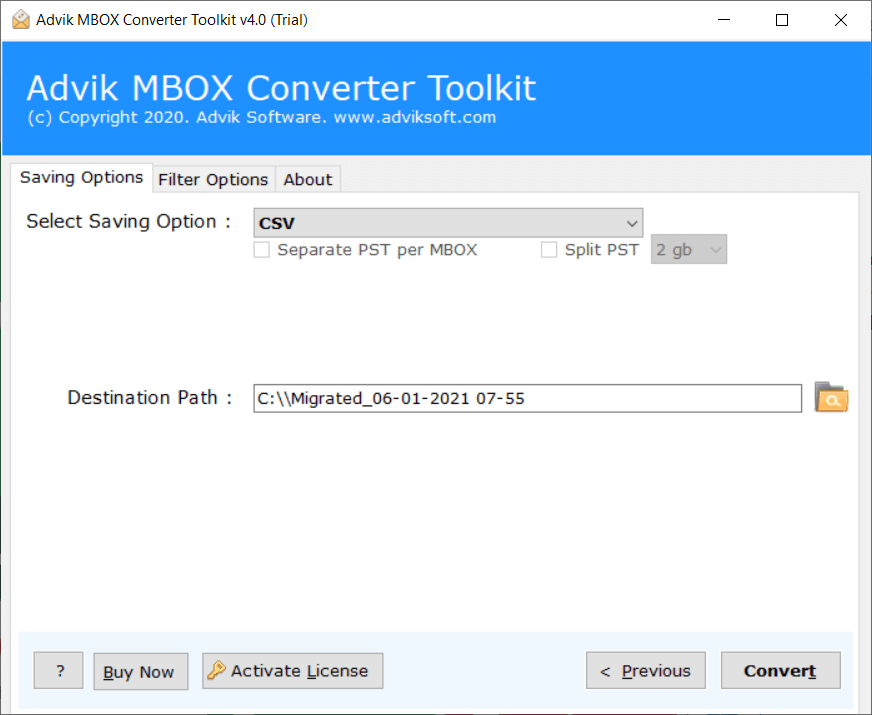
The tool automatically extracts email fields and saves them into a properly structured CSV file.
Key Features of MBOX to CSV Converter
- Convert MBOX to CSV with high accuracy
- Extracts email fields like To, From, Subject, Date, CC, BCC
- Preserves email metadata structure
- Supports all MBOX-based email clients
- Handles large MBOX files efficiently
- Generates spreadsheet-ready CSV files
- Simple and user-friendly interface
Best Practices Before You Convert MBOX to CSV
- Always create a backup of your MBOX files
- Avoid manual conversion for large mailboxes
- Use professional tools for reporting or audits
- Verify CSV data structure after conversion
Conclusion
Converting MBOX to CSV is essential for users who need email data in a structured, spreadsheet-friendly format. While the manual method may work for a few emails, it is impractical and risky for large datasets.
For a fast, accurate, and scalable solution, using a professional convert MBOX to CSV approach with MBOX to CSV Converter is highly recommended. It ensures clean data extraction, saves time, and simplifies email analysis.
If data accuracy, reporting efficiency, and scalability matter to you, choosing a trusted MBOX to CSV Converter is the smartest decision.